 Omnimatch
 Schedule tasks
Hosted feature. This guide applies to the online app. The current on-premise edition does not include this feature.
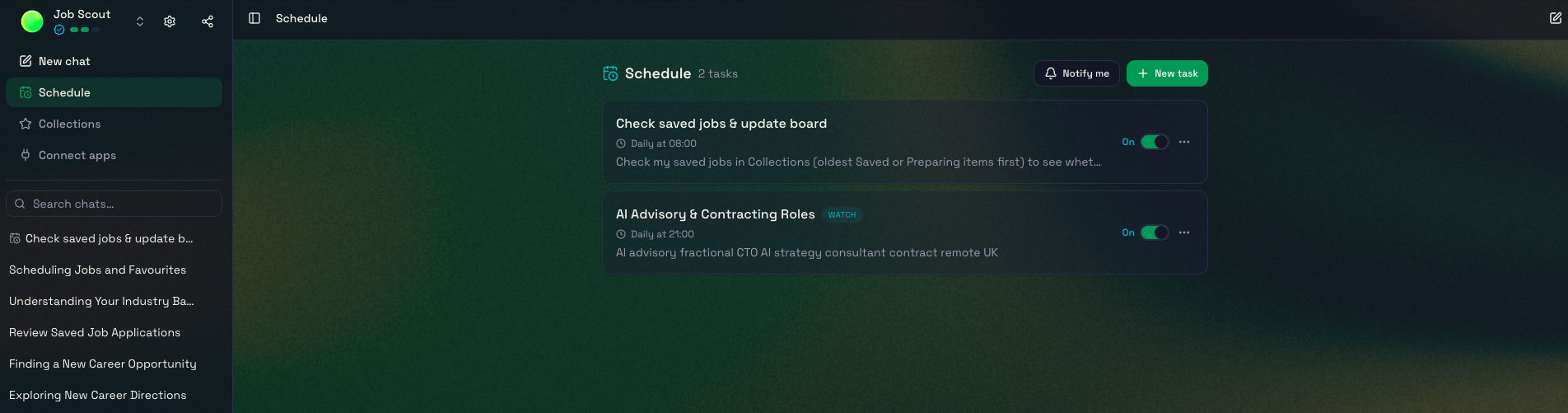
Create a schedule
- Open an agent that offers Schedule.
- Create a task and describe the outcome you want. Include the sources, filters and answer format the agent should use.
- Choose Once, Daily, Weekly or Monthly, then set the date or day and time.
- Review the timing and choose Schedule it.
Check the timing
The schedule uses your browser’s time zone when saved. Check the displayed next run, particularly if you travel or intend to schedule work for a team in another region. A one-off task runs on its selected day and then stops.
Review results
Return to Schedule to see the task’s status and inspect its work. Scheduled tasks use the agent’s available sources and permissions, so a disconnected provider or changed access can affect a run.
Change or stop a task
Open the task to edit its instructions or timing. Pause it when you want to stop future runs temporarily, or delete it when you no longer need it. Deleting a task also removes what its runs collected and cannot be undone.